Smart Lights for Google Home: Setup, Tips, and Automation
Learn to pair smart lights with Google Home, automate lighting, and save energy. This Bulb Fix guide covers compatible bulbs, setup steps, voice control, scenes, and safety for homeowners.


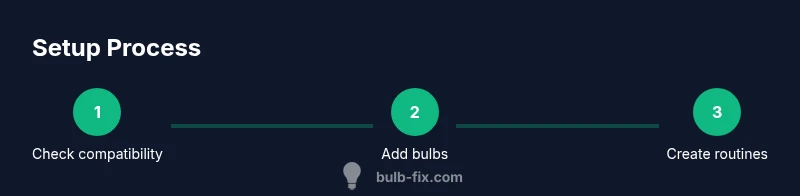
With this guide you’ll set up smart lights that work with Google Home, connect compatible bulbs, and create voice-activated scenes. You’ll need a Google Assistant device or app, compatible smart bulbs, and the Google Home app. By the end you’ll control lighting with voice, schedules, and routines across rooms. This quick answer outlines the steps and best practices.
What is smart lighting with Google Home?
Smart lighting refers to LED bulbs and fixtures that can be controlled remotely via a mobile app, voice, or automation. When you connect these bulbs to Google Home, you gain hands-free control through the Google Assistant, scenes, and routines. This integration is especially convenient in living rooms, kitchens, and bedrooms, where you can dim lights for movie time or brighten a workspace with a quick voice command. Most smart bulbs today operate over Wi‑Fi or through a hub that links to Google Home, and many offer color temperatures from warm white to daylight. In this guide for homeowners, Bulb Fix explains how to choose compatible bulbs, set them up, and build practical automations that save energy and improve daily life. According to Bulb Fix, establishing a consistent naming convention and placing bulbs on reliable networks prevents many setup headaches.
Choosing compatible bulbs and hubs
When evaluating smart bulbs for Google Home, look for compatibility labels such as 'Works with Google Assistant' and 'Works with Google Home'. This ensures you can issue voice commands and integrate with routines. Decide whether you want 6W-10W LED bulbs or brighter options, and consider color capability (tunable white vs RGB). If you already have a smart speaker, confirm it supports Google Assistant on the same account you plan to use for lighting. For most homeowners, choosing bulbs that work via Wi‑Fi or a compatible hub offers reliable performance and a smoother setup. Pay attention to firmware update cadence and the brand’s app ecosystem, since a strong app experience reduces setup friction.
Getting set up: the Google Home app
The Google Home app serves as the control center for your smart lights. Start by signing into your Google account, then add a new device and select your bulbs. Follow on-screen prompts to link the bulbs to your Google Home network, assign each bulb to a room, and set a default brightness. Keep the app updated and review privacy settings to limit data shared with manufacturers. A well-organized setup reduces voice command errors and makes routines more predictable. For best results, group bulbs by room and name them clearly so voice commands map directly to the intended lights. This approach aligns with common best practices from Bulb Fix for smoother integration.
Voice control and routines
Voice control works best when bulbs are properly named and grouped. Use simple, room-based names like 'Living Room Lamp' or 'Kitchen Under-Cabinet.' With Google Assistant, you can say, 'Hey Google, turn on Living Room Lamp' or 'dim Living Room Lamp to 40%.' Routines let you automate multiple actions with a single phrase, such as 'Hey Google, good morning' to turn on lights, adjust brightness, and start a scene. Routines can also respond to triggers like time of day or sunset, which is especially helpful for energy savings and security while you’re away from home.
Scenes, automations, and energy savings
Scenes are a collection of settings for multiple lights at once. Create scenes for movie night, reading, or dinner, and assign them to voice commands or schedules. Automations can be time-based or triggered by events such as sunset or occupancy sensors (if your bulbs support this). Smart LED bulbs typically use less energy than incandescent bulbs, and dimming reduces consumption further. For homeowners, a practical approach is to start with 2–3 bulbs per room and expand as needed, then review energy savings over a month. By leveraging grouping and scheduling, you can significantly reduce unnecessary lighting and cut energy use over time.
Troubleshooting common issues
If a bulb doesn't appear in Google Home, verify the bulb is in pairing mode and that the smartphone is on the same Wi‑Fi network. Check that the Google account used for setup is the same one linked to the Google Home device. Restart the bulb, reset the bulb to factory settings, and re-add it. If commands are not recognized, re-train your voice with clear pronunciation and ensure the language setting matches your region. Persistent issues may stem from router settings, a busy network, or firmware that needs updating. In most cases, re-adding the device resolves the problem.
Safety, privacy, and best practices
Keep your network secure by using a strong Wi‑Fi password and enabling two-factor authentication on your Google account. Only install bulbs from reputable brands and keep firmware updated to mitigate vulnerabilities. Place bulbs away from water sources if used outdoors and avoid using non-approved hubs that could compromise performance. Regularly review connected devices in the Google Home app and remove devices you no longer use. A careful setup reduces risk and preserves the convenience of smart lighting.
Authority sources
To help you verify guidance and explore background material, here are credible resources on lighting fundamentals and safety:
- Energy.gov – Lighting Basics for energy efficiency: https://www.energy.gov/eere/buildings/articles/lighting-basics
- NIST – Lighting and measurement standards: https://www.nist.gov/topics/lighting
- OSHA – Lighting safety guidelines: https://www.osha.gov/lighting
Tools & Materials
- Google account with Google Assistant(Use the same Google account on phone and speaker for seamless setup.)
- Google Home device or Nest speaker(Any model that supports Assistant (speaker or smart display).)
- Smart light bulbs compatible with Google Home(Choose LEDs with the 'Works with Google Assistant' label; verify 2.4 GHz support if needed.)
- Google Home app (Android or iOS)(Install from your app store and keep it updated.)
- Phone or tablet for setup(Used to run the Google Home app during initial configuration.)
- Secure Wi‑Fi network(Most bulbs require 2.4 GHz; ensure the network is stable during setup.)
- Optional: Hub or bridge(Needed only for Zigbee/Z-Wave bulbs that do not connect directly via Wi‑Fi.)
- Smart plug (optional)(Useful for turning traditional lamps into smart devices.)
Steps
Estimated time: 60-120 minutes
- 1
Prepare your devices
Unbox the bulbs and ensure they are installed in suitable fixtures. Check that you have a Google account ready and a compatible speaker or display. Confirm your Wi‑Fi network is running and stable to support device pairing.
Tip: Write down the exact bulbs' model names to simplify search in the Google Home app. - 2
Install the Google Home app and sign in
Download or update the Google Home app on your phone. Sign in with the Google account you plan to use for lighting control. Grant required permissions for location, microphone, and Bluetooth if prompted.
Tip: Enable notifications for the app to receive setup reminders and reminders about firmware updates. - 3
Add bulbs to Google Home
Open the Google Home app, tap the + icon, select 'Set up device,' then 'Works with Google.' Follow prompts to locate and add each bulb. Assign a room to every bulb for easier voice control.
Tip: Name each bulb clearly (e.g., 'Living Room Lamp') to reduce misinterpretation by Google Assistant. - 4
Assign rooms and test basic commands
Group lights by room in the app. Test basic commands like 'Hey Google, turn on Living Room Lamp' and 'dim Living Room Lamp to 40%.' Verify that each room responds as expected.
Tip: If a command fails, check the device groupings and ensure bulbs are online in the app. - 5
Create routines and scenes
In the Google Home app, create a routine that turns on lights at a specific time or when you say 'Good morning.' Add multiple bulbs to scenes for mood lighting with one command.
Tip: Test routines at different times of day to ensure reliability across devices. - 6
Test, refine, and secure
Run a full test of voice commands and routines. Review privacy settings and update firmware regularly. If you notice slow responses, reduce the number of devices connected to one hub or router.
Tip: Document your setup so you can replicate it easily in future home upgrades.
Got Questions?
Do I need a hub for Google Home smart lights?
Most bulbs connect directly to Wi‑Fi or via the Google Home ecosystem; hubs are optional for many setups. If a bulb relies on Zigbee or Z-Wave, you’ll need a compatible hub.
Most setups don’t require a hub, but some bulbs do. Check the label and your bulb’s manual.
Can I control smart lights with voice on Google Home?
Yes. You can command individual bulbs or rooms, such as 'Hey Google, turn on the Living Room lights' or 'set Living Room to 50% brightness.'
Yes, you can control lighting with voice commands through Google Assistant.
Why won't Google Home find my bulbs?
Ensure bulbs are in pairing mode, on the same Wi‑Fi network, and that you’re signed in with the correct Google account. If needed, reset the bulbs and re-add them in the app.
Make sure the bulbs are in pairing mode and on the same network, then re-add them.
Are smart bulbs energy efficient?
Yes. Most smart bulbs are LED and use less energy than traditional bulbs; check wattage and lumens to choose efficient options.
Yes, LED smart bulbs are energy efficient compared to incandescent options.
How do I set up routines with Google Home?
In the Google Home app, create a Routine and add actions like turning on lights, adjusting brightness, and starting scenes. Schedule these to run automatically.
Open the Google Home app, create a Routine, and add lighting actions.
Can I automate lights with sunrise/sunset?
Yes. Use routines or triggers based on sunset or sunrise to adjust lighting automatically, great for energy savings and security.
Yes, you can schedule lights to adapt to sunrise or sunset.
Watch Video
Key Points
- Choose bulbs labeled Works with Google Assistant.
- Organize lighting by room for quick control.
- Automate with routines to save energy and time.
- Test voice commands and refine naming for accuracy.
- Keep security updates and firmware current.