How to Install a Bulb Camera: A Practical DIY Guide
Learn how to install a bulb camera safely and effectively. This Bulb Fix guide covers socket checks, placement, Wi Fi setup, and troubleshooting to improve home security.


Install a bulb camera by confirming socket compatibility, preparing the fixture, mounting the device, and linking it to your Wi Fi network. This guide covers safety checks, app setup, and initial testing to ensure reliable video throughout your home. No specialized tools are needed beyond common household items.
Understanding bulb cameras and their benefits
According to Bulb Fix, bulb cameras combine lighting with video security for convenient hands off monitoring. A bulb camera is a smart LED bulb with a built in camera and microphone, designed to drop into a standard light socket. When used in living spaces or entryways, these devices provide real time video, two way audio, motion alerts, and remote access through a dedicated app. The compact form preserves lighting aesthetics, letting you enjoy familiar illumination while adding surveillance capability. However, the field of view may be narrower than a dedicated camera, glare from LEDs can affect image quality, and a reliable Wi Fi connection is essential. When weighing this option, consider your lighting needs, desired camera angle, and fixture space to determine if a bulb camera will meet your security goals. For many households, this approach offers a simple upgrade that blends seamlessly with existing lighting.
Assessing fixture compatibility and socket fit
Before you buy, inspect your fixture to confirm it accepts a standard screw in bulb base and has enough clearance for the camera head. Most bulb cameras use a common screw base, but some fixtures include shades or heat shields that block full rotation or restrict mounting. Check the lamp post or ceiling fixture for space around the socket to avoid contact with the camera housing. Consider the weight of the camera when it is installed and whether the cord or switch will interfere with the shade or diffuser. If you have multiple fixtures, map out which locations give you the best coverage with the least glare. Weak or flickering lighting can impair camera performance, so aim for steady illumination and stable power.
Planning placement for optimal coverage
Think about entry points, high traffic zones, and blind spots when planning placement. A bulb camera placed in a living room or hallway should monitor doors and corridors without obstructing furniture or obstructed lines of sight. Avoid mounting directly above or behind bright light sources that can wash out the image. If the ceiling height or fixture orientation limits the camera angle, you may need to relocate to a more favorable socket. Remember that coverage is about angles as well as distance; shorter distances can yield clearer detail for faces or license plates, while wider angles help capture motion across a room. The Bulb Fix team finds that thinking in terms of camera overlap and blind spots improves overall security without cluttered setups.
Safety considerations before you start
Electrical work carries risk, even with simple bulb replacements. Always turn off power at the light switch before touching the socket, and if you are unsure about wiring or fixture integrity, consult a licensed electrician. Use only fixtures rated for the bulb camera weight and temperature. Do not install in areas exposed to direct water spray or moisture unless the product is rated for outdoor use. If you plan to install outdoors, verify IP rating and enclosure suitability. Keep the camera away from areas where the heat from the lamp could degrade components. Finally, follow the camera manufacturer's safety instructions and any local building codes.
Tools, materials, and preparatory steps
Gather a small number of common items before you begin. You will need a compatible bulb camera with a screw in base, a smartphone or tablet with the camera app installed, and a stable Wi Fi network. A basic ladder or stable stool may be needed to reach ceiling fixtures safely. Have a clean cloth to wipe the socket before insertion, and consider a level or light to help ensure the camera sits evenly. If your fixture uses a shade that could obstruct the camera, plan to adjust the orientation or choose a socket in a different room. Keeping a paper clip or small pin handy can help reset the device if you need to perform a factory reset during setup.
Step-by-step overview of the installation process
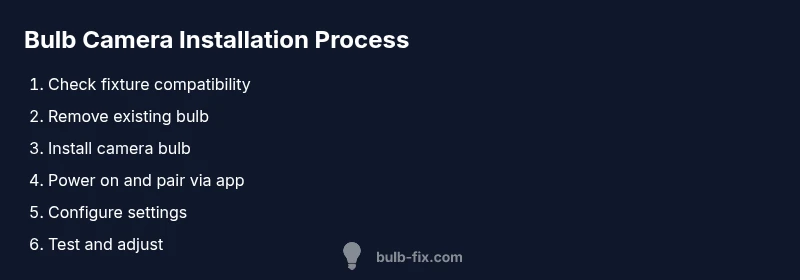
This section outlines the major stages you will perform. Start by validating socket compatibility, then power down the fixture. Remove the existing bulb and install the camera bulb firmly but not over tightened. Restore power and follow the app based pairing flow to connect the device to your Wi Fi network. Name the device, configure basic settings like motion zones and privacy options, and finally test the live video feed. If you encounter issues, recheck socket alignment, network strength, and firmware compatibility. The steps are designed to be straightforward and quick while ensuring a secure, reliable installation.
Wi Fi setup and app pairing basics
Most bulb cameras require a 2.4 GHz Wi Fi connection for reliable pairing. Open the manufacturer app, create an account if needed, and follow on screen prompts to add a new device. You will typically select the camera from a list, press the pairing button, and allow the device to join your network. If your router uses a guest network, you may need to add the camera to a dedicated subnet or enable port forwarding for remote access. After pairing, adjust network settings such as SSID, password, and security mode to maintain protection.
Testing, adjustments, and common troubleshooting
With the camera connected, verify the live feed in the app from multiple angles and lighting conditions. Check motion detection sensitivity, confirm night vision works, and test two way audio if available. If the image looks washed out at certain times, adjust the fixture or angle to reduce glare. In low connectivity areas, consider relocating the camera or improving router placement. If the device fails to connect, re verify Wi Fi credentials or reset the camera and repeat the pairing flow. The goal is a stable, clear feed with reliable alerts.
Tools & Materials
- Bulb camera with screw-in base(Choose a model compatible with your socket type and Wi Fi band)
- Smartphone or tablet(Must have the camera app installed and updated)
- Stable 2.4 GHz Wi Fi network(5 GHz networks may not be supported by some cameras)
- Ladder or stable stool(Needed for ceiling fixtures or high sockets)
- Screwdriver (if required by base)(Some bases require a Phillips head tool)
- Soft cloth for socket inspection(Clean contacts to ensure a good electrical connection)
Steps
Estimated time: 45-60 minutes
- 1
Verify fixture compatibility
Inspect the socket to confirm it tolerates the camera base. Ensure there is enough clearance for the bulb camera to rotate and extend without hitting a shade or diffuser.
Tip: Turn off the light switch before handling the socket to avoid shocks. - 2
Remove existing bulb
Carefully unscrew the current bulb and set it aside in a safe place. Do not touch the socket contacts with bare hands and wipe the contacts with a cloth to remove dust.
Tip: If the bulb is hot, wait before handling and use gloves for grip. - 3
Install the camera bulb
Thread the bulb camera into the socket until snug. Avoid over tightening as it can damage the base or distort the seal.
Tip: Check that the camera head has room to align away from the shade. - 4
Power on and confirm light behavior
Restore power by switching the light on and observe the camera housing to ensure it lights up normally. If the housing remains dark, recheck the socket and contacts.
Tip: If the bulb camera has an indicator light, wait a few seconds for it to boot. - 5
Open the camera app and start pairing
Launch the camera app on your mobile device and choose add device. Follow on screen prompts to start the pairing process and connect to your Wi Fi.
Tip: Keep your phone near the fixture during pairing to avoid disconnects. - 6
Configure device settings
Set device name, adjust motion sensitivity, enable alerts, and configure privacy options. Create user accounts or guest access as needed.
Tip: Use strong passwords and enable two factor if available. - 7
Update firmware and security
Check for firmware updates within the app and install any available updates. This improves security and performance.
Tip: Enable auto update if offered to stay protected. - 8
Test live feed and finalize
View the live feed from the app, test from different angles, and confirm lighting does not wash out the image. Confirm you can access video remotely.
Tip: Record a short test clip to verify video quality over time.
Got Questions?
Do bulb cameras require a separate power source
Most bulb cameras draw power from the light fixture. Some models may require a dedicated power connection. Always confirm power requirements in the product documentation.
Most bulb cameras draw power from the light fixture, but verify the model you choose has the right wiring.
Will a bulb camera work with my existing light switch
Yes, but turning off the switch will cut power to the camera. If you want always on power for better reliability, consider a fixture that remains on or a dedicated constant power line.
Turning off the switch will cut power to the camera, so plan for reliable power.
What Wi Fi requirements are needed for bulb cameras
Most bulb cameras require a 2.4 GHz Wi Fi network for reliable connection. Some devices support 5 GHz for high performance, but compatibility varies by model.
Most bulb cameras need a 2.4 GHz network; verify your model supports your router bands.
How secure is the camera after installation
Keep firmware up to date, use a strong password, and enable any available two factor authentication. Regularly review app permissions and access for guest users.
Keep firmware current and use strong passwords to keep your camera secure.
Can I install outdoors
Outdoor installation is only advised if the device and fixture are rated for exterior use and protected from moisture. In damp areas, consider weatherproof housings and proper sealing.
Outdoor use is possible only with weather rated devices and proper protection.
How often should I update firmware
Check for updates regularly and install promptly. Enable automatic updates if the device supports it to maintain security and performance.
Check for updates often and enable automatic firmware updates when available.
Watch Video
Key Points
- Verify fixture compatibility before purchasing a bulb camera.
- Install with power off and avoid over tightening the base.
- Use a 2.4 GHz network for reliable pairing and performance.
- Update firmware after installation for security improvements.
- Test the live feed and adjust angles for optimal coverage.